
Digital Architect Content Browser
About Content Browser
Overview
The Content Browser is an essential tool that supports UpToDate Digital Architect products, solutions, and users. With this application, you can view all available UpToDate Digital Architect products and access the full library of content and tools for each product that your organization has licensed.
A few examples of what you can do:
Try out our search and content retrieval workflows live.
Preview and review specific content items.
Retrieve ready-to-use, shareable web links or get embed codes for selected content.
Note that the included content/formats and content retrieval mechanisms vary by product offering. Currently available products are also listed on the Developer Portal home page. From there, you can select any product to view more detailed information about the included content and functionality.
Getting Access
A user account is needed to access Content Browser (you can use the same credentials to authenticate to Content Browser and Developer Portal).
For Licensed Customers
User accounts can be configured by request for organizations that are currently licensing one or more Digital Architect products. Contact your account rep or send an email to support@uptodate.com to request user access.
Trials
If you are not currently licensing a Digital Architect solution but want to explore, trial licenses are available. If you are interested in trial access, please submit an inquiry to our sales team.
Navigating the Browser
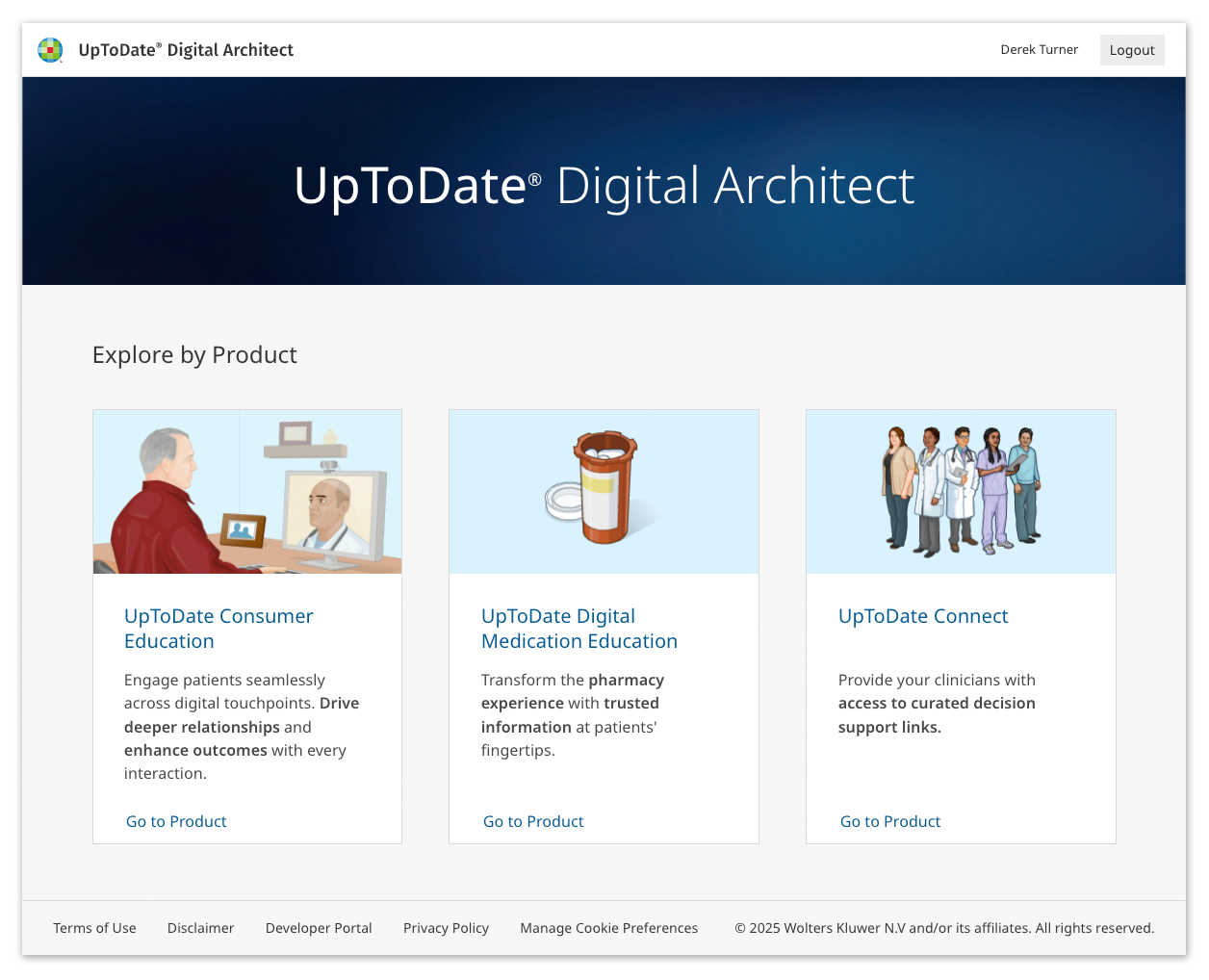
Upon logging in, the UpToDate Digital Architect Content Browser landing page shows all available products. Select a product card to explore the available features and content. NOTE: A valid license is required for access to each product and the included content sets.
Explore Product: UpToDate Consumer Education
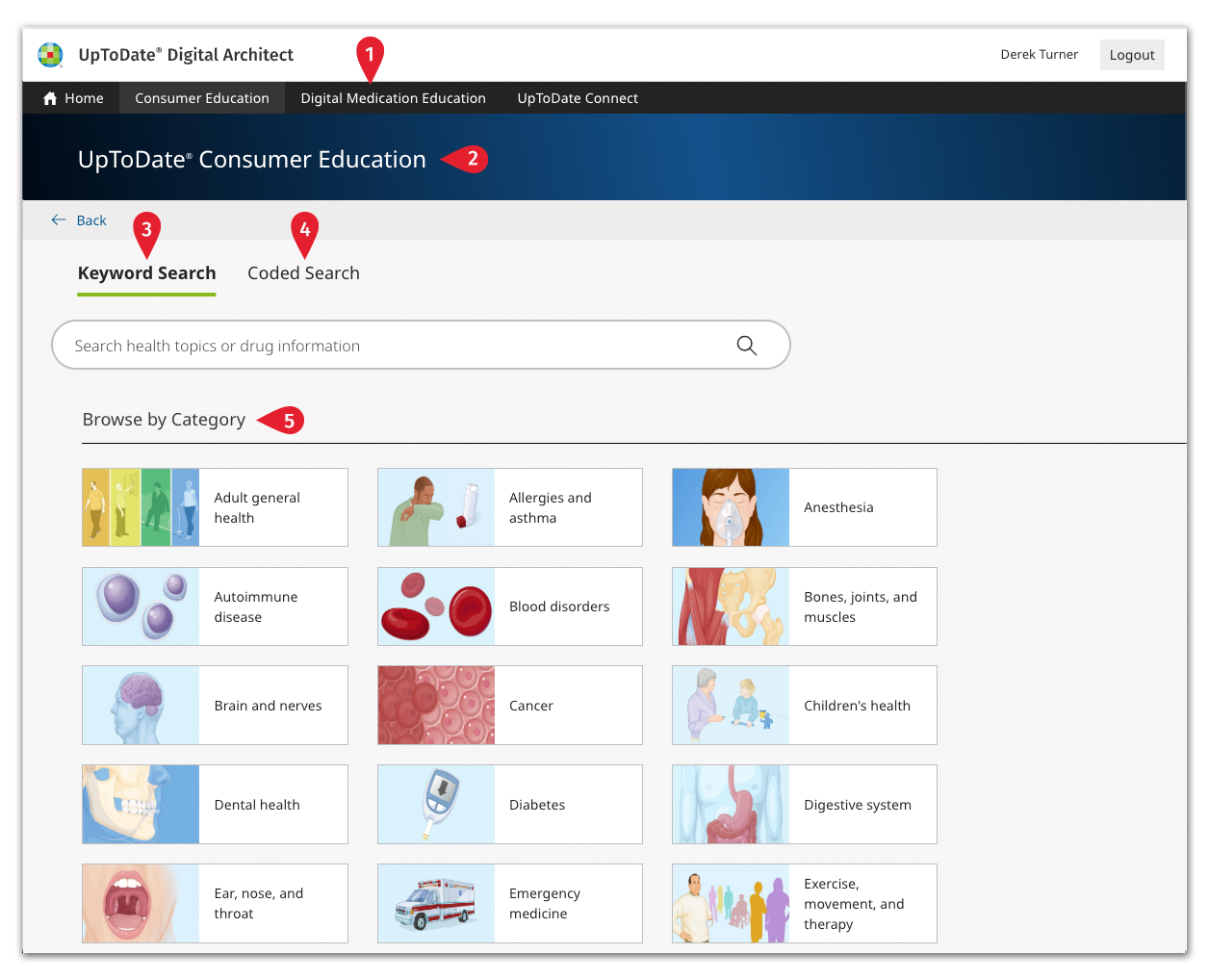
Navigation menu. Use the nav menu to easily return to the Home screen or switch to another product space.
Page banner. When viewing and navigating product-specific spaces, the page displays the product name (e.g. UpToDate Consumer Education) at the top of the page.
Keyword Search. Search across our entire Consumer Education content library by keyword.
Coded Search. Toggle to the Coded Search tab to search for content by clinical code (ICD-10-CM, ICD-10-PCS, LOINC, SNOMED-CT, or RxNorm).
Browse by Category. Discover available content for specific areas of interest - from conditions and treatments to wellness tips.
Explore Product: UpToDate Digital Medication Education
Navigation menu. Use the nav menu to easily return to the Home screen or switch to another product space.
Page banner. When viewing and navigating product-specific spaces, the page displays the product name (e.g. UpToDate Digital Medication Education) at the top of the page.
NDC Search. Search for digital medication leaflets and related medication-specific content such as images & imprints and FDA guides by NDC (if you don't have a code handy but you want to see the content, copy and paste a sample code from below the search box).
FPI Search. Alternate, broader method to search for content related to dispensed medications by FPI (formatted product identifier), which is either an NDC, Universal Product Code (UPC), or Health Related Item (HRI), converted to 11 characters according to the National Council on Prescription Drugs Program (NCPDP) standards. NOTE: FPI is a proprietary Medi-Span drug identifier.
Hosted Experience QR Code. Scan the QR code in the illustration to see a demonstration of our off-the-shelf digital medication leaflet experience.